What the 3-2-1 backup rule means, why cloud sync isn't a backup, how to protect backups from ransomware, plus a checklist to test your own backups.
Most small businesses have some kind of backup. Far fewer have backups they could actually rely on after a ransomware attack, a failed server or a deleted folder. The 3-2-1 rule is a simple, proven way to close that gap. Here’s what it means, how to apply it and how to check whether your current backups would really save you.
What is the 3-2-1 backup rule?
The rule is easy to remember:
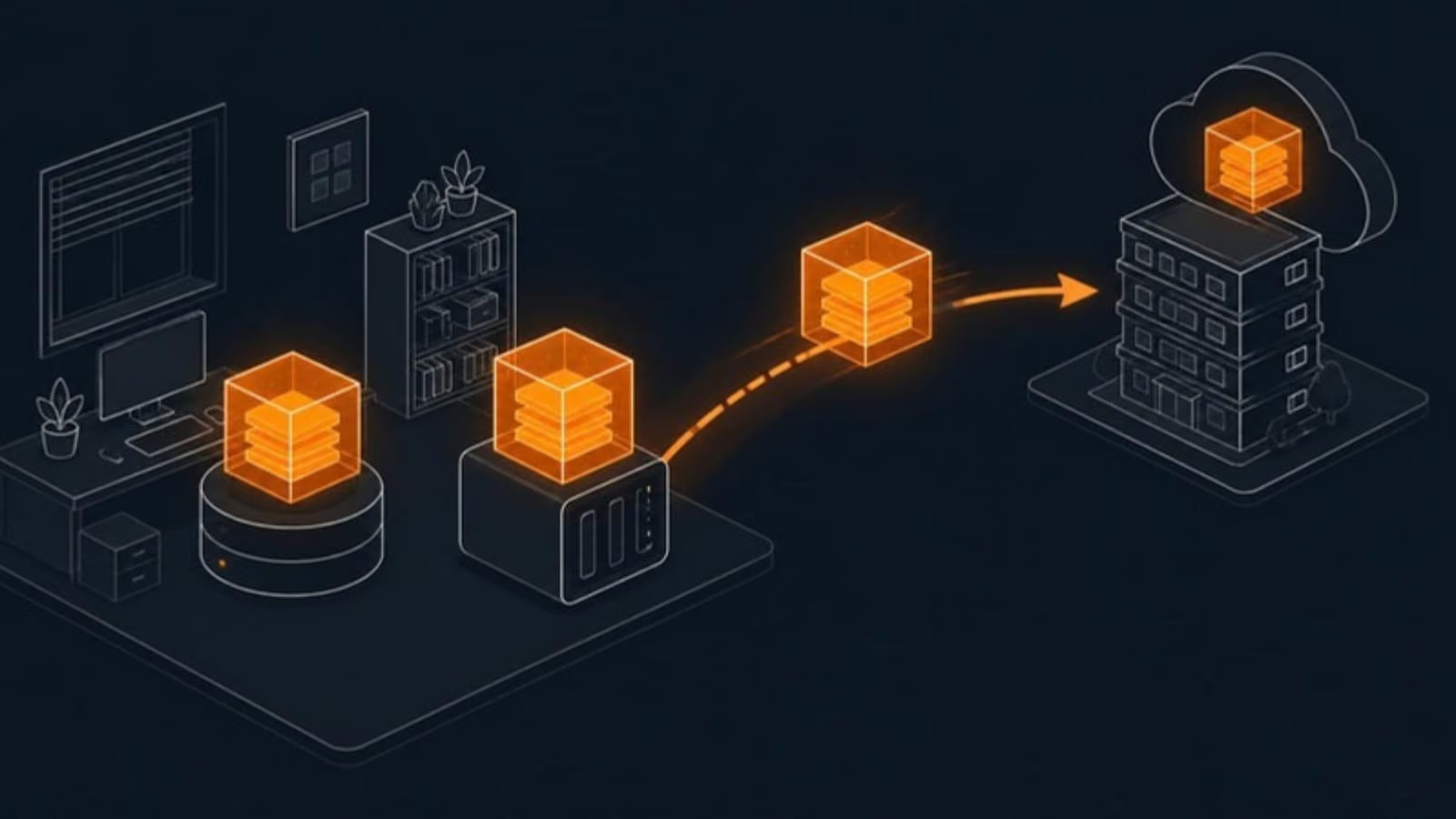
- 3 copies of your data. Your live data plus at least two backups.
- 2 different types of storage. For example, a local backup device and cloud storage, so one type of failure can’t wipe out everything.
- 1 copy offsite. Stored somewhere physically separate, so a fire, flood or theft at the office doesn’t destroy your backups along with your computers.
The idea is simple: no single failure, whether hardware, human, physical or criminal, should be able to destroy every copy of your data.
Why one backup isn’t enough
A single backup has a single point of failure. External drives die, often without warning. A backup device sitting next to the server can be stolen, flooded or encrypted along with it. Cloud accounts can be deleted or locked. When your only backup fails at the same time as your main data, you have nothing.
Sync is not backup
This is the most common misunderstanding we see. Services like OneDrive, Google Drive and Dropbox keep files in sync across devices. That’s very useful, but it isn’t a backup. If a file is deleted, corrupted or encrypted by ransomware on one computer, that change syncs everywhere.
These services do keep deleted files and previous versions for a while, and that can help in minor situations. But retention is limited, and it doesn’t protect against every scenario, like an admin account being compromised, a departing employee deleting files deliberately, or damage that goes unnoticed for months.
The same applies to Microsoft 365 and Google Workspace. The providers keep the service running, but protecting your data from deletion and misuse is your responsibility. A separate backup is the safety net.
Updating the rule for ransomware: 3-2-1-1-0
Modern ransomware doesn’t just encrypt your files. It actively looks for backups to delete or encrypt, so you have no choice but to pay. That’s why many IT professionals now talk about the 3-2-1-1-0 rule:
- 1 copy that’s offline or immutable. Immutable backups can’t be changed or deleted for a set period, even by an administrator. Offline backups aren’t connected to your network at all. Either way, ransomware can’t reach them.
- 0 errors. Backups are monitored and restores are tested, so you know they actually work.
What to back up
It’s easy to forget something important. Make sure your backup plan covers:
- File servers and shared folders
- Line-of-business databases, such as accounting, practice management and inventory systems
- Servers, ideally as full system images so they can be restored completely
- Microsoft 365 or Google Workspace, including email, OneDrive, SharePoint, Teams and Google Drive
- Laptops with files that aren’t stored in the cloud
- Website and configuration data, including firewall and network device configurations
How often to back up
The right frequency depends on how much data you can afford to lose. IT people call this the Recovery Point Objective (RPO). If losing a day of work would be painful but survivable, daily backups may be fine. If a clinic or accounting database changes constantly, backing up several times a day makes more sense.
It’s also worth deciding how quickly you need to be running again, called the Recovery Time Objective (RTO). A local backup restores much faster than downloading everything from the cloud, which is one reason the 3-2-1 approach uses both.
Test your backups
A backup you’ve never restored is a hope, not a plan. Testing doesn’t have to be complicated:
- Check that backup jobs succeed. Someone should see and act on failure alerts every day.
- Restore a few files regularly. Pick files from different locations and dates, and confirm they open.
- Test a full system restore periodically. Make sure a server or key computer can actually be rebuilt from backup, and time how long it takes.
- Restore something from your Microsoft 365 or Google Workspace backup. A deleted mailbox folder or shared file is a good test.
- Write down the results. Note what worked, what didn’t and how long it took, then fix any problems.
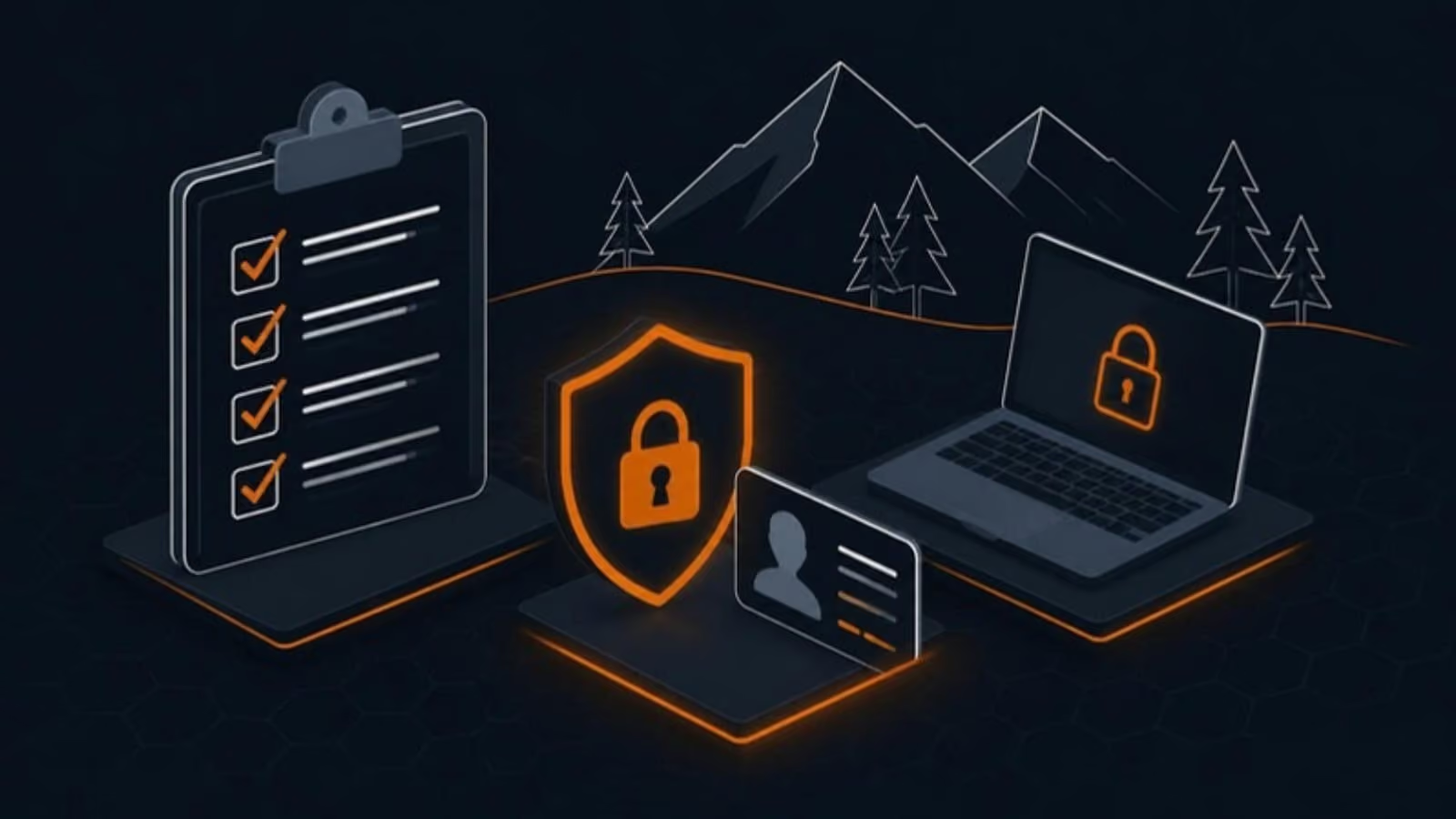
A quick backup checklist
Answer yes or no:
- Do we have at least three copies of our important data?
- Are those copies on at least two different types of storage?
- Is at least one copy stored offsite?
- Is at least one copy immutable or offline?
- Are Microsoft 365 or Google Workspace backed up separately?
- Does someone check backup success every day?
- Have we successfully restored files in the last few months?
- Do we know how long a full recovery would take?
- Is backup data encrypted?
- Do we have a written plan for what to restore first after a disaster?
If you answered no to any of these, your data is more at risk than it should be.
Want someone to handle it?
Designing, monitoring and testing backups is exactly the kind of important but easy-to-neglect task that falls through the cracks in a busy business. Our backup and disaster recovery service takes care of it, with encrypted automated backups, offsite and immutable copies, daily monitoring and regular restore tests. If you’d like us to check your current setup, get in touch.