MFA blocks most account takeovers. Which accounts to protect first, which methods are safest, and how to roll it out without frustrating your team.
If you only do one thing to protect your business this quarter, make it multi-factor authentication. It costs nothing on most business plans, takes a few minutes per person and stops the single most common way small businesses get breached: someone’s password ends up in the wrong hands.
What MFA actually does
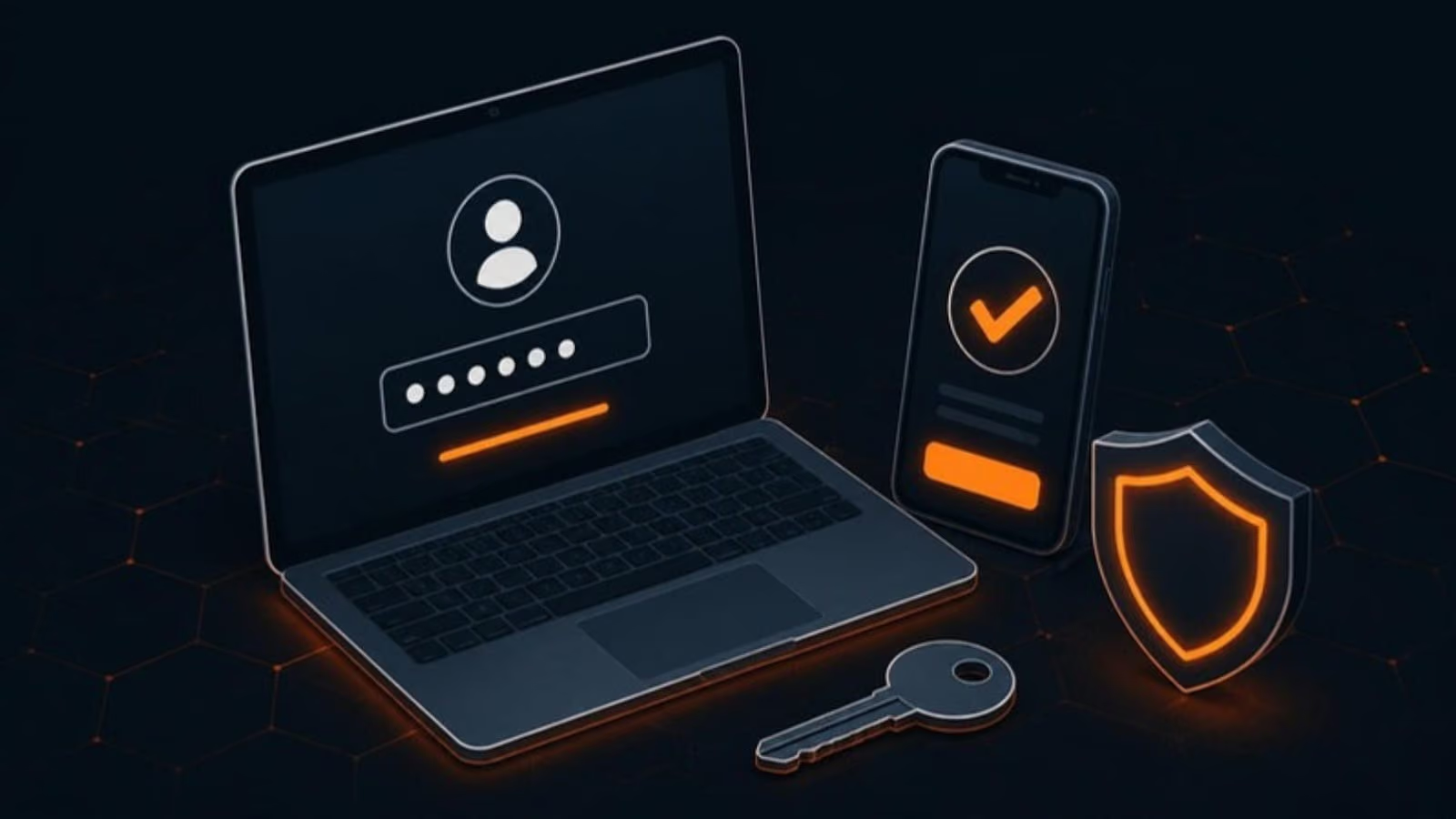
A password is one factor, something you know. Multi-factor authentication adds a second: something you have, like your phone or a security key. Even if an attacker buys your password from a leak or tricks someone into typing it on a fake login page, they still can’t get in.
That matters because passwords leak constantly. People reuse them between work and personal accounts, and breaches at unrelated websites hand criminals millions of email-and-password pairs to try. Attackers don’t guess; they replay credentials that already exist.
Where to turn it on, in order
You don’t have to do everything at once. Work down this list:
- Email. Microsoft 365, Google Workspace or whatever hosts your mail. Email is the master key: it can reset the password on almost every other account.
- Administrator accounts. The accounts that manage your email tenant, website, domain registrar and any cloud platform. These deserve the strongest protection you have.
- Banking and finance. Online banking, payroll, accounting software and payment processors.
- Remote access. VPN, remote desktop and any way into the office network from outside.
- Cloud file storage and line-of-business apps. Practice management, CRM, HR systems, anything holding client data.
- Social media and marketing tools. Losing a business page or ad account is expensive and public.
- Your domain registrar. Whoever holds your domain name controls your email and website. This one is often forgotten.
Not all second factors are equal
Ranked from strongest to weakest:
- Passkeys and hardware security keys (FIDO2). Phishing-resistant: they simply won’t authenticate to a fake site. Best for admins and anyone handling money.
- Authenticator apps with number matching. The app shows a number you must type, so a user can’t approve a login by reflex.
- Authenticator app codes. Six-digit rotating codes. Solid and free.
- Push approvals without number matching. Convenient, but vulnerable to “MFA fatigue”, where an attacker spams approval prompts until someone taps yes.
- SMS codes. Better than nothing, and much better than no MFA at all, but text messages can be intercepted or redirected through SIM swapping.
If your team is already using SMS, don’t let perfect stop you. Turn on SMS now, and move people to an app or passkeys as a second step.
The parts people forget
Legacy protocols. Older mail protocols can bypass MFA entirely. In Microsoft 365, that means blocking legacy authentication; in Google Workspace, turning off less secure app access. Skipping this leaves a back door open behind the MFA you just enabled.
Shared accounts. The reception login, the shared info@ mailbox, the bookkeeping account everyone uses. Give people individual accounts wherever possible, and where a shared account is unavoidable, use a business password manager that supports shared vaults and MFA.
Service accounts and devices. Scanners, copiers and line-of-business apps that send email often use an account with a static password. Use restricted, modern methods for these rather than exempting them and forgetting.
Break-glass access. Keep one emergency admin account with a long, unique password stored somewhere physically safe, so a lost phone can’t lock you out of your own tenant.
Rolling it out without a revolt
MFA gets resistance when it’s sprung on people. A rollout that works:
- Tell everyone why, with a real example: an invoice redirected, a mailbox quietly forwarding mail to a stranger.
- Start with the leadership team. It sets the tone and finds problems early.
- Enrol in small groups, with someone available to help for the first hour.
- Do it on a quiet day, not during month-end or a busy clinic morning.
- Set the “remember this device” window to something sensible, so staff aren’t prompted constantly on their own computers.
- Document the recovery process before you need it: lost phone, new phone, employee leaving.
Most teams find that after the first week, MFA becomes invisible.
What MFA doesn’t cover
MFA is not a complete security plan. Attackers can still steal session tokens, use malware on an unprotected computer or simply trick someone into sending money. It works alongside:
- Endpoint protection and patching on every device
- Email filtering and domain authentication
- Tested backups
- Staff training, especially on spotting phishing
Need a hand?
We roll out MFA across Microsoft 365 and Google Workspace for businesses in Metro Vancouver, including the awkward parts: legacy protocols, shared mailboxes, scanners and recovery procedures. If you’d like it done properly in one go, get in touch.